Salesforce report manager
Manage Salesforce reports and dashboards without one-by-one work
Copy report sets for new teams, move assets into the right folders, delete stale clutter, and copy a dashboard with the reports it depends on. SF Report Manager gives Salesforce admins and consultants a focused Chrome workflow for reporting changes that should not take all afternoon.
Runs from your browser · Uses your Salesforce permissions · Security and data flow
The slow part is not one report. It is the whole reporting change.
Teams split, regions change, leaders ask for a dashboard variant, and old folders keep filling with reports nobody trusts. In native Salesforce, that often means opening assets one by one, choosing folders again and again, and checking that dashboard components still point to the right reports.
Roll out report sets faster
Give a team, region, department, or client its own working folder by copying a known set of reports instead of rebuilding each one.
Copy a dashboard without losing its reports
When a dashboard needs its own copy, choose the dashboard folder and the report folder, then review the generated package before it runs.
Clean up folders with a review step
Move useful assets where they belong, delete stale copies, and check destructive work before it reaches Salesforce.
How it works
Pick, review, run
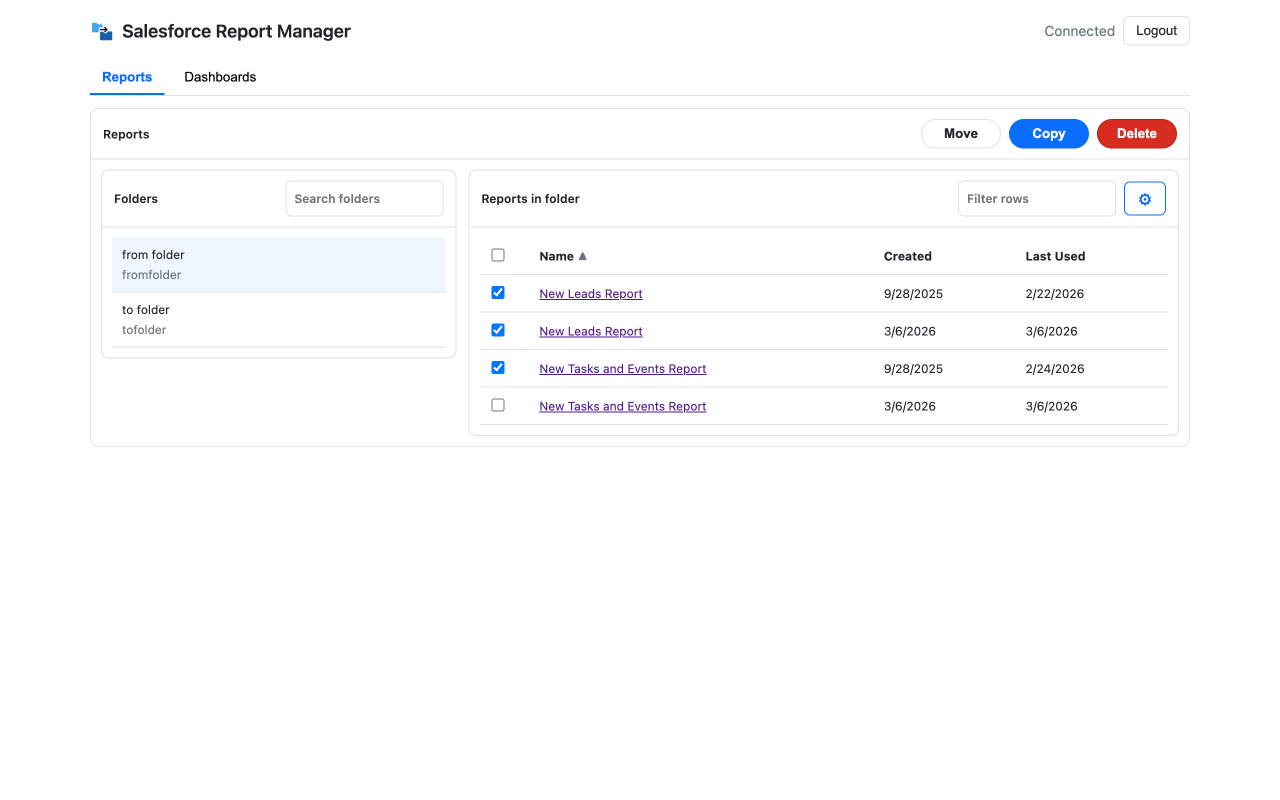
The extension keeps the workflow obvious. Choose a folder, select assets, decide the action, check the review screen, then run it with your current Salesforce access.
Start from Salesforce folders
Browse report and dashboard folders, search within them, filter rows, and select the assets that belong in the job.
Choose the action and destination
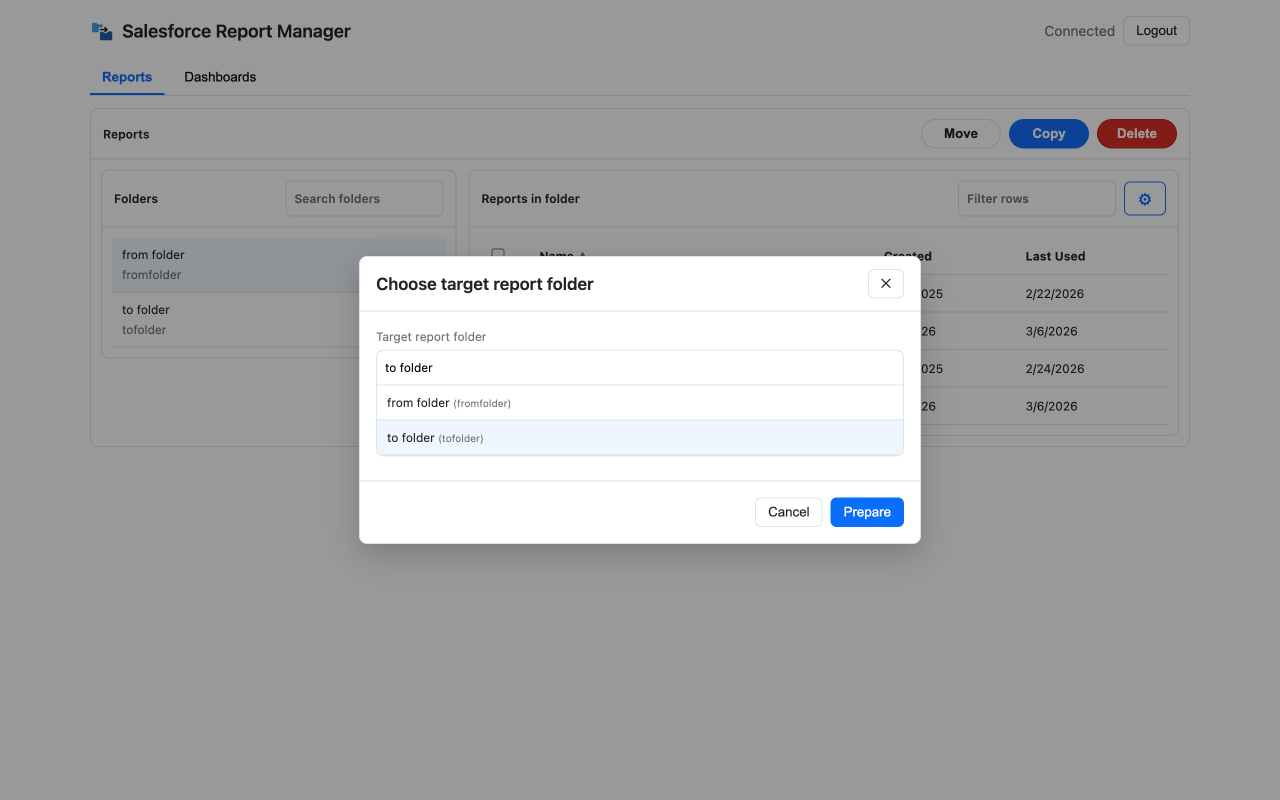
For copy and move jobs, pick the target folder first. For dashboard copy, choose where the dashboard and its copied reports should go.
Review the exact scope
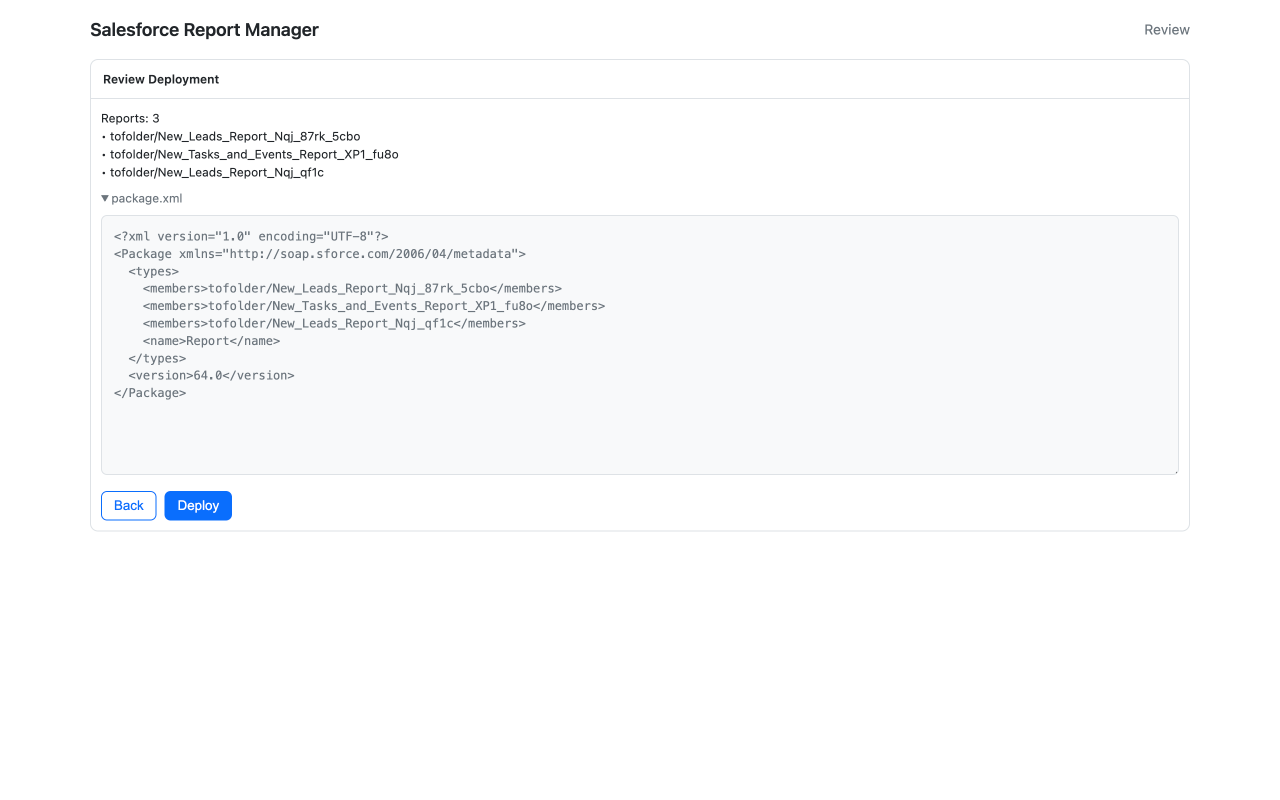
Check selected assets, target folders, and the generated metadata package. Move and delete actions also get a clear confirmation screen.
See what happened
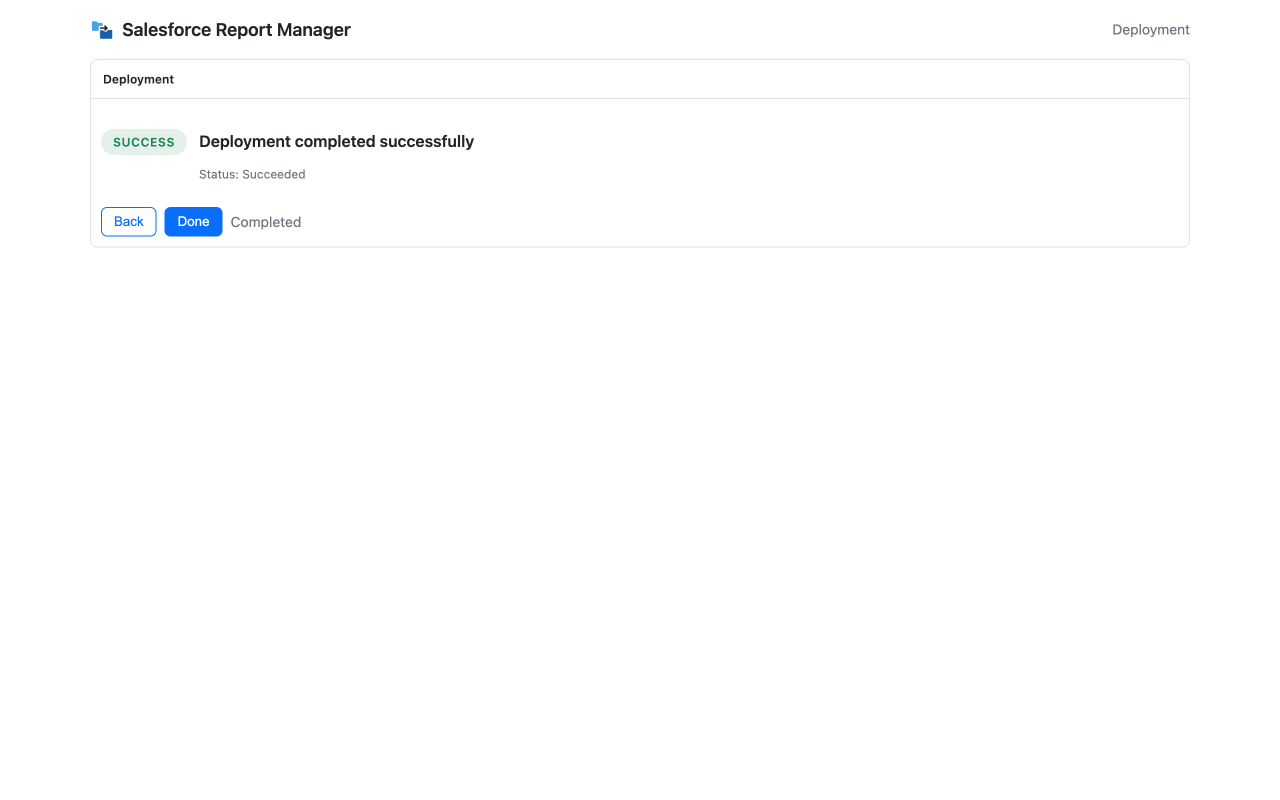
When the job finishes, see success and failure counts so you know whether to continue, retry, or investigate.
See pricing or keep scrolling for common questions.
Where admins get the time back
Team and regional rollouts
Copy the report set a new team needs, place it in the right folder, and tailor it after the repetitive folder work is done.
Dashboard copies with report dependencies
Create a dashboard copy together with the reports it references, so the new dashboard is not still wired to the old report set.
Folder cleanup after org changes
Move useful reports and dashboards into the right folders, then remove stale copies when reorgs, projects, and old experiments leave clutter behind.
Everyday admin requests
Handle the normal flow of "can you copy these reports?", "move those dashboards," and "make a version for my team" without turning each request into a mini-project.
Leadership reporting packs
Prepare focused folders for weekly reviews, QBRs, pipeline meetings, leadership updates, and board reporting without leaving duplicates scattered everywhere.
Consultant handoffs and cleanup
Give consultants a repeatable workflow for organizing report and dashboard assets before handoff, restructure, cleanup, or same-org migration prep.
Need larger batches? View plans.
Security and FAQ
Who is SF Report Manager for?
Salesforce admins, consultants, RevOps teams, and power users who maintain report and dashboard folders, especially during cleanup, team changes, regional rollouts, and client handoffs.
Does it support both reports and dashboards?
Yes. Reports and dashboards have dedicated views. Report copy supports selected report sets. Dashboard copy is currently one dashboard at a time and can include the reports referenced by that dashboard.
Can it copy dashboards in bulk?
Not yet. Move and delete can run on selected dashboards, but dashboard copy currently supports one dashboard per operation because the extension also prepares the referenced reports and rewrites the copied dashboard package.
Does it change report logic?
No. SF Report Manager manages report and dashboard assets, folders, and metadata packages. It does not rewrite your business logic, filters, or reporting definitions for you.
Does it follow Salesforce permissions?
Yes. Operations use your authenticated Salesforce access. You can only act on assets and folders your Salesforce user can access.
How does authentication work?
Salesforce authentication uses OAuth and your browser session. Your Salesforce password is never exposed to the extension.
Is any data sent externally?
Core report and dashboard operations run from your browser against Salesforce APIs. Optional account, billing, and telemetry details are covered in the privacy policy.
Is this an official Salesforce product?
No. SF Report Manager is an independent Chrome extension. Salesforce is a trademark of Salesforce, Inc.